Unlocking Insights: Learn the Power of Data Visualization
With access to endless data, presentation is crucial. Learn the importance of data visualizations and how to get started with Tableau.
Data Visualization
As a novice statistician (am I allowed to call myself that yet?) I’ve discovered the problem of statistical misinterpretation—it’s like an epidemic of confusion! Trust me, this is a problem that needs some serious fixing. And although this problem needs to be addressed with the general population, let’s get to the root of the issue. Data visualization. It starts with us, and by that I mean the data analysts, statisticians, data scientists, or whatever you call yourself.
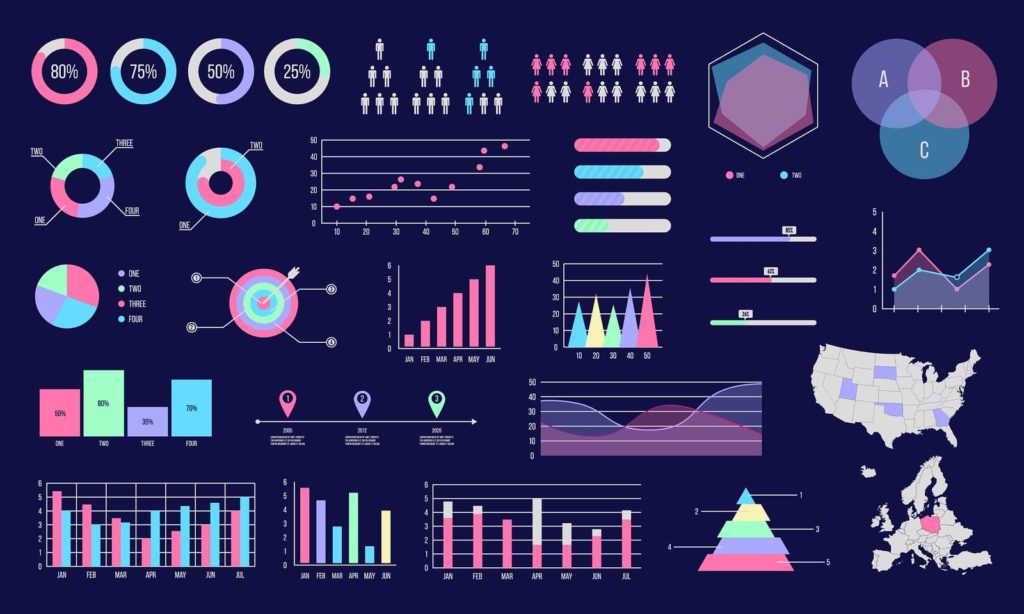
Most people look at a chart and make immediate assumptions about the data. Isn’t that what these graphical representations are for? In order to assist with this epidemic, we have to ensure that we present data in extremely deliberate ways. Not only are these visualizations essential for spreading accurate information into the great unknown, but have I also mentioned that I believe data visualization is the arts and crafts of STEM? Plus, what can be more fun than choosing the colors to represent our variables? Or what icon to represent our data points?
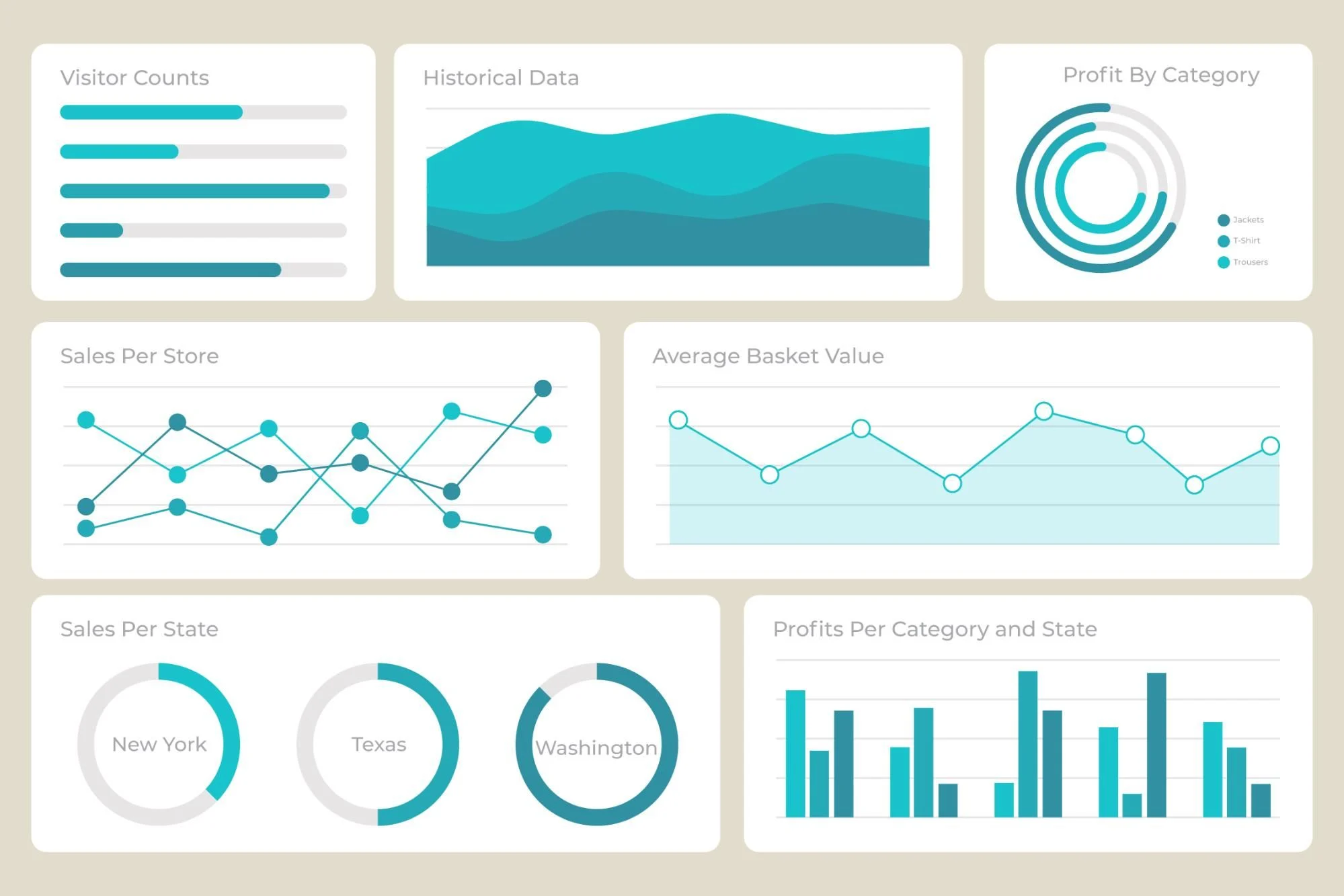
If it isn’t obvious yet, I believe data visualization is extremely important. It shapes the world we live in and the decisions we make (plus it’s super fun). So today I want to dive into this topic and give you an overview of my favorite tool for this art: Tableau. Tableau is a data visualization and business intelligence (BI) tool that enables users to analyze and present data in beautiful ways. Users can easily upload and connect datasets, manipulate data, create dashboards and reports, and even integrate with other software.
Top Features of Tableau
-
Data Connectivity: Excel, SQL databases, cloud storage, even big data platforms. If it has data, Tableau can probably read it.
-
Drag-and-Drop Interface: No coding required. Just click, drag, and boom—instant visualizations.
-
Interactive Dashboards: Filter, drill down, and interact with your data in real time. No more static charts.
-
Advanced Analytics: Calculated fields, trend lines, forecasting, and integration with R and Python are all supported with Tableau.
-
Real-Time Data Processing: Work with live data or save extracts for faster analysis.
-
Collaboration & Sharing: Publish dashboards for your team, your clients, or the entire internet.
Tableau Products
-
Tableau Desktop: Where the magic happens. Build your dashboards here.
-
Tableau Server: Share your work with your team and collaborate.
-
Tableau Online: Like Server, but in the cloud. No IT team required.
-
Tableau Public: The free version for showing off your work to the world. (I love to use this on LinkedIn)
-
Tableau Prep: Because messy data is the enemy, and this helps clean it up.
What Chart Should I Use?
Step One: Know Your Data
Before you even think about picking a chart, ask yourself:
- Is my data categorical? (e.g., colors, product names, regions)
- Is it numerical? (e.g., sales, revenue, temperature)
- Does it change over time? (e.g., monthly sales, daily website traffic)
Step Two: Choose Wisely
Here’s a quick guide to making sure your data gets the chart it deserves:
Bar Chart
- The MVP of comparisons. Use it when you want to see how different categories stack up.
Example: Comparing sales across regions or product categories.
Line Chart
- Your go-to for trends over time. If your data has a time element, this is probably your best bet.
Example: Tracking monthly sales over the past year.
Pie Chart
- Shows proportions, but use this one very sparingly—they always end up confusing.
Example: Displaying market share among competitors.
Scatter Plot
- When you need to show relationships between two numerical variables. Great for spotting correlations!
Example: Analyzing if higher ad spend actually leads to more sales.
Heat Map
- Ideal for showing patterns across two categories, like time of day vs. customer activity.
Example: Identifying when your website gets the most traffic.
Tree Map
- Hierarchical data? This one’s for you. Size and color do the heavy lifting here.
Example: Visualizing revenue breakdowns by product category and subcategory.
Bottom line: The right chart makes your data tell a story. The wrong chart makes people squint at their screen. Thus, choose wisely. You don’t want to make people work so hard they misinterpret the data.
If you want to learn more about charts and when to use them check out this article from datylon.
Let’s Get Started
Are you ready to make your first visualization in Tableau? Let’s start easy and free and head straight for Tableau Public.
1. Sign Up For a Profile to Save Your Work here: Tableau Home
This is simple and free and will allow you to save and share your work.
2. Create your first visualization.
In order to create your visualization, navigate to the top left, click “Create+”, then “Web Authoring”. You’ve officially done it!

3. Upload a dataset.
Follow along with me by using the same dataset: Road Accident Data
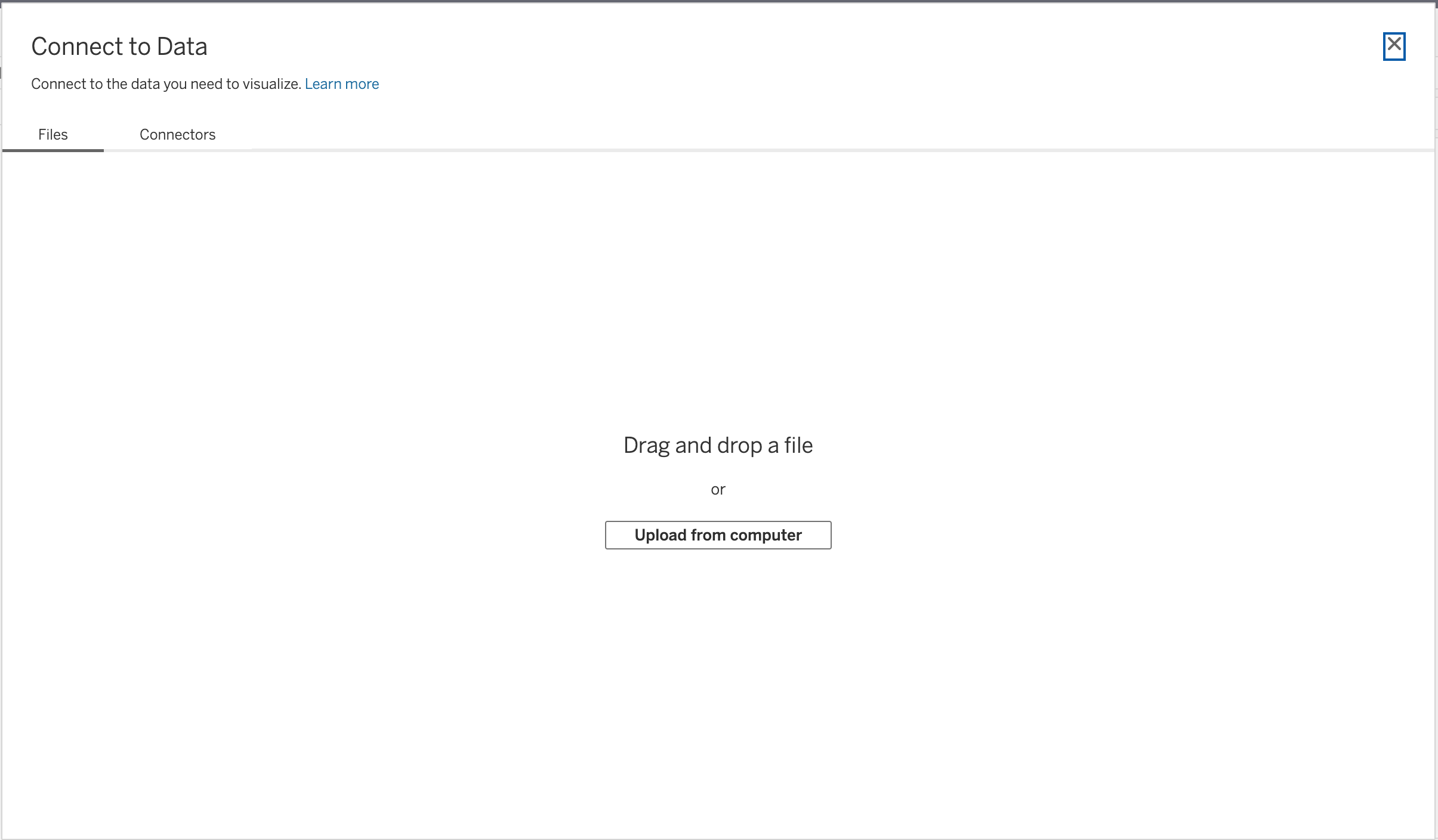
Immediately after creating your viz, a pop up will appear allowing you to connect your data. Once here navigate to the location of your data on your computer. If the popup doesn’t appear, click on the “Data” tab in the top left, then “New Data Source” to access the pop up.
4. Drag and Drop Variables
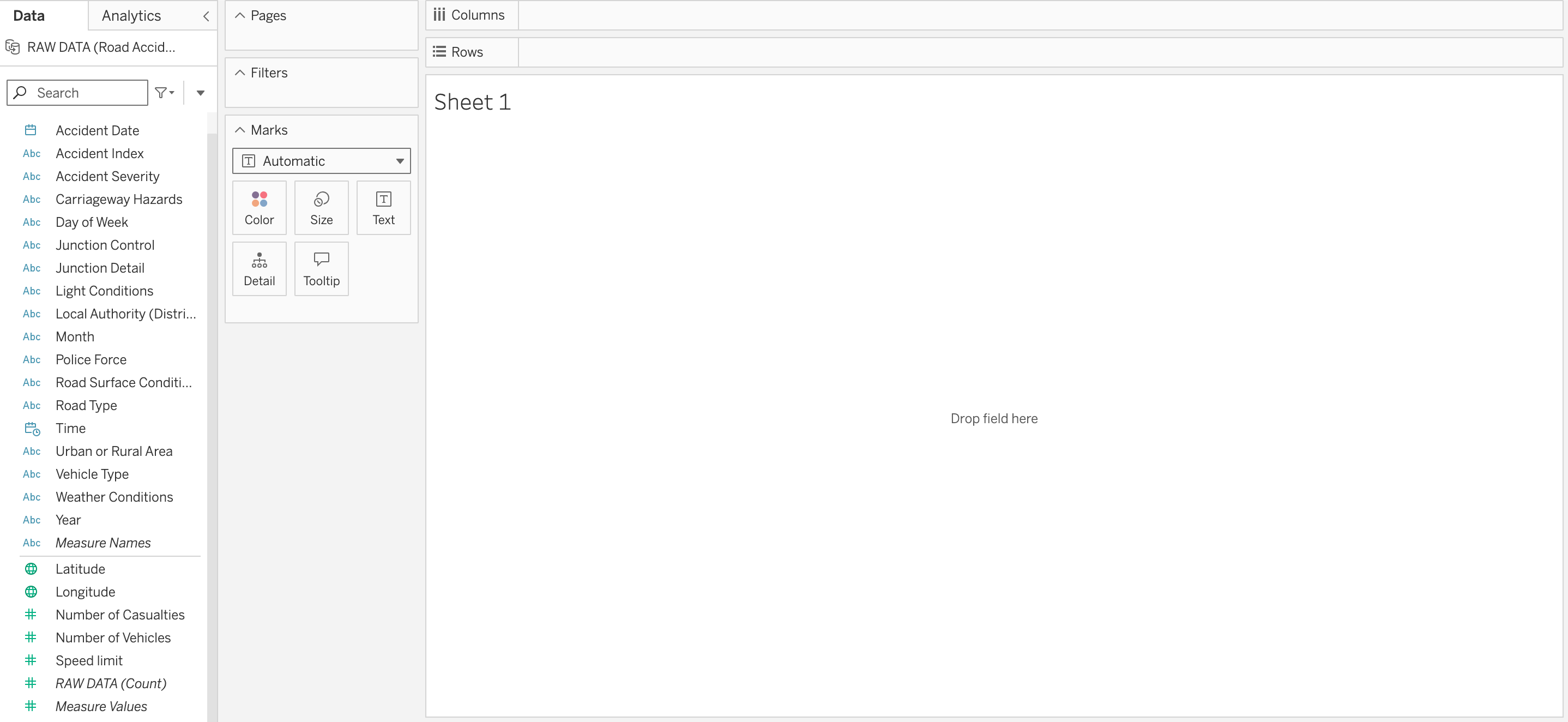
In order to start our viz, be sure to click on the “Sheet 1” tab on the footer. (This is a great time to name your sheet too) You’ll notice a long list of variables on the left of your screen; this is where the fun beigns! I suggest exploring these variables by dragging and dropping them into the “Columns” and “Rows” found just underneath our toolbar. As you start playing around you’ll begin to notice trends.
Here is an example of my histogram where I compared the sum of the number of vehicles involved in crashes to the month of the year. Beware of November!
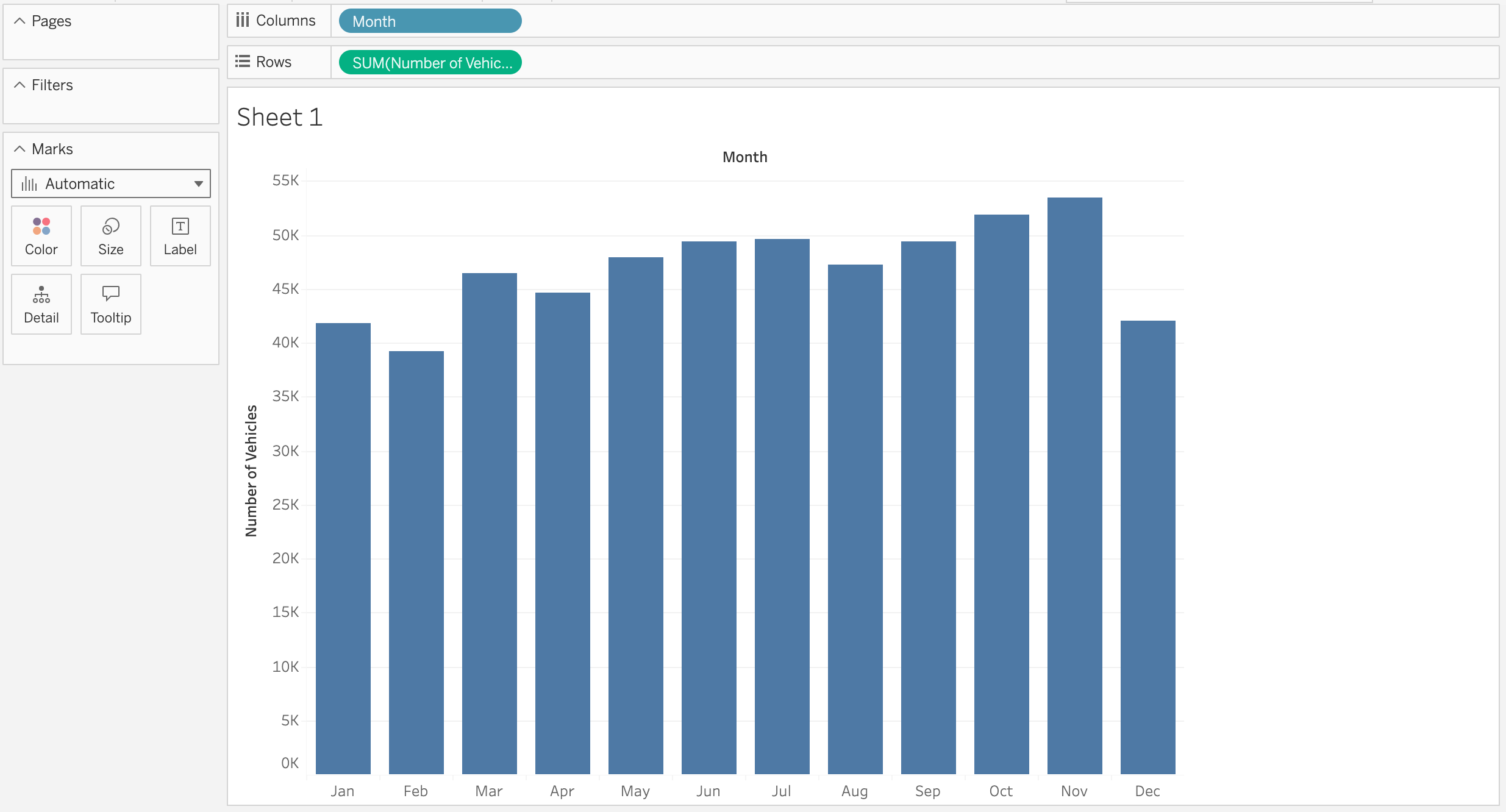
Before moving on try answering a few of these questions as you create new vizzes: What day of the week has the total highest number of vehicles involved in a crash? What about the highest average number of vehicles involved in a crash? What road type has the total highest number of casualities? Urban or Rural? What were the conditions?
If you struggled creating these charts here is a youtube tutorial to help: Data Visualization Tutorial
5. Add filters
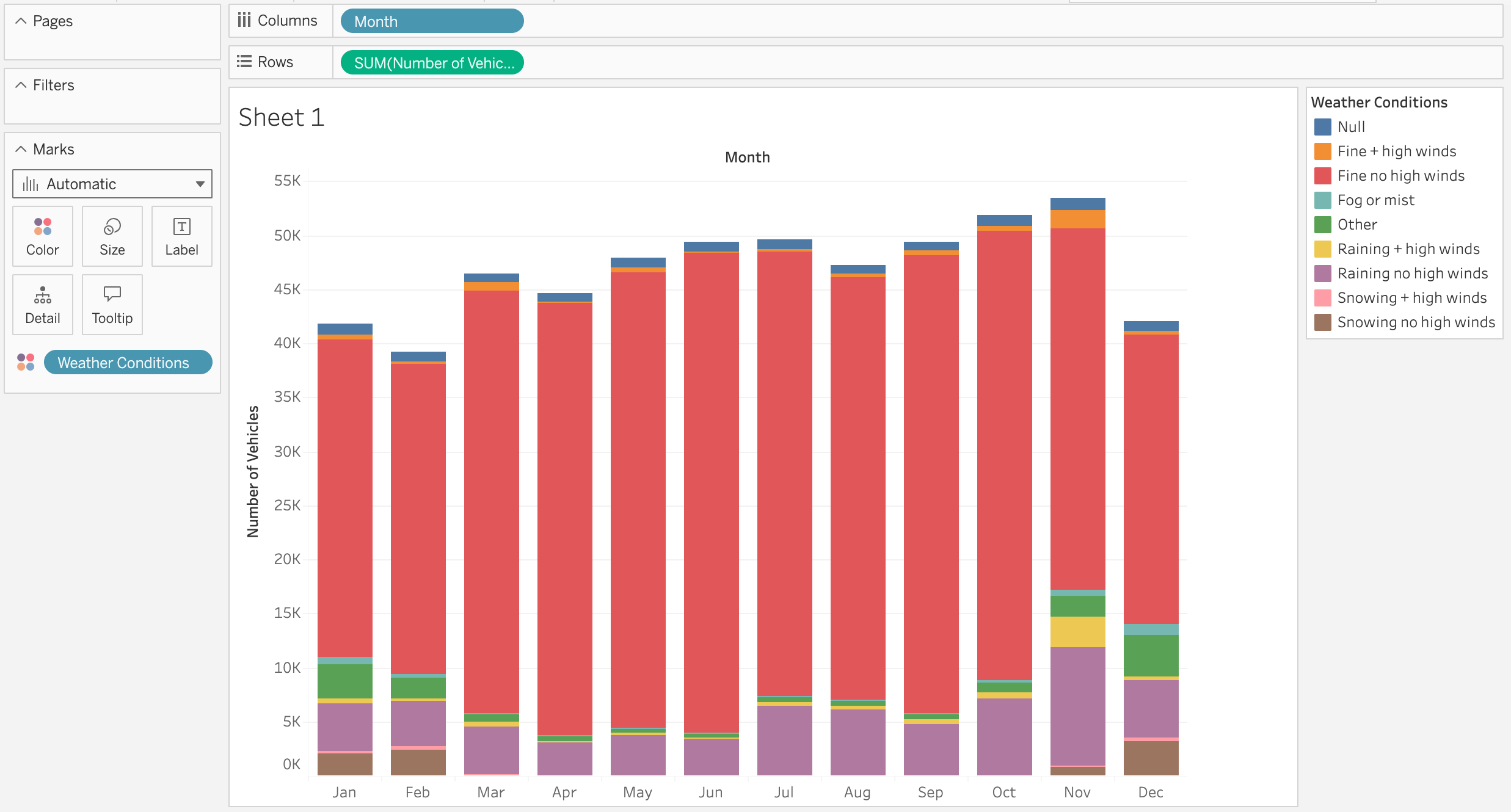
Try dragging and dropping variables to create filters. You can filter shape, color, or size, depending on the type of viz you’re creating. In the following histogram I filtered by “Weather Conditions”. In order to do this I clicked and dragged the variable until it was hovering over the “Color” icon. This automatically creates a filter and uses color to demonstrate the weather conditions within each crash. Test out other filters and see what you can discover about the data.
10. Try different variations
The options are endless with Tableau. Check out my public dashboard to see some of the other vizzes I’ve created. My Dashboard
Interpretation of Data
Key Questions to Ask
As you create your visualizations focus on what questions you want it to answer. Can a reader easily gain these insights from what you’ve created?
Here are potential questions to ask:
- What story is the data telling me?
- Are there any trends, outliers, or surprising patterns?
- Is the chart easy to interpret at a glance, or do I need to dive deeper into the details?
Best Practices for Data Visualization
Alright, let’s talk about making your charts as effective as possible. Data visualization isn’t just about throwing data at a screen and hoping something sticks. Rather, it is all about crafting a story that speaks clearly. Following are five steps to ensuring your pictures speak a thousand words.
1. Keep it Simple
More doesn’t always mean better. Too much information on one chart is like trying to listen to a dozen people talk at once. So stick to the essentials. Less is more!
2. Use Color Wisely
Color should highlight, not distract. Focus on making key points pop and let the data speak for itself.
3. Tell a Story
Every chart should have a point or main message. Think of your visualization like a narrative, you want it to make sense from start to finish. Clear, simple, and to the point.
4. Use Tooltips and Annotations
Do you need to explain something that’s not immediately obvious? Tooltips and annotations are your best friends. They guide the viewer, adding context where necessary without cluttering up the chart.
5. Avoid Misleading Visuals
ALWAYS prioritize accurate representations of your data. No one needs a 3D pie chart that makes the numbers look bigger than they really are. Stick to what’s true, and steer clear of anything that could lead to misinterpretation.
Conclusion
As we’ve explored, data visualization is far from just a tool; it’s an essential part of telling the stories hidden within our data. Whether you’re a novice statistician (like me) or a seasoned expert, mastering the art of visualization is key to making data not only accessible but engaging and insightful for everyone. Tableau provides us with an incredible platform to bring these visualizations to life, turning complex datasets into simple, digestible insights that can guide decision-making. (Be sure to explore other visualization tools and packages to expand your skills.)
But, let’s not forget the greater responsibility that comes with creating these visuals. As data analysts, statisticians, and data scientists, we are the gatekeepers of information. The way we choose to display and communicate data has a direct impact on how it’s interpreted—and ultimately, how decisions are made. So, let’s continue to hone our skills, make thoughtful choices, and use the power of visual storytelling to drive meaningful change. The world needs accurate, clear, and engaging data representations, and it’s up to us to deliver them with creativity and precision. I hope my blog has taught you a little more about data visualizations and how to create something that tells a story. Now don’t just read - go create something! I’m excited to see what you create.